How EyesOff Spots Shoulder Surfers Using a Privacy-First Approach
EyesOff is your on-device security companion. It works quietly in the background to keep your device safe from snoopers, whether they peek over your shoulder or try to access your device when you step away to grab a coffee.
How we Detect Shoulder Surfers on Device
EyesOff employs a purpose-built “ShoulderGuard” pipeline to detect and alert you to shoulder surfers (when someone shoulder surfs we call the event an “intrusion”). Best of all, the pipeline runs locally on your computer!
The ShoulderGuard Pipeline
The pipeline has two major steps and the whole process is optimised for battery efficiency. With one of the target deployments for EyesOff being laptop users on the go, the focus on battery usage is paramount. With this in mind we created the ShoulderGuard pipeline in its current form:
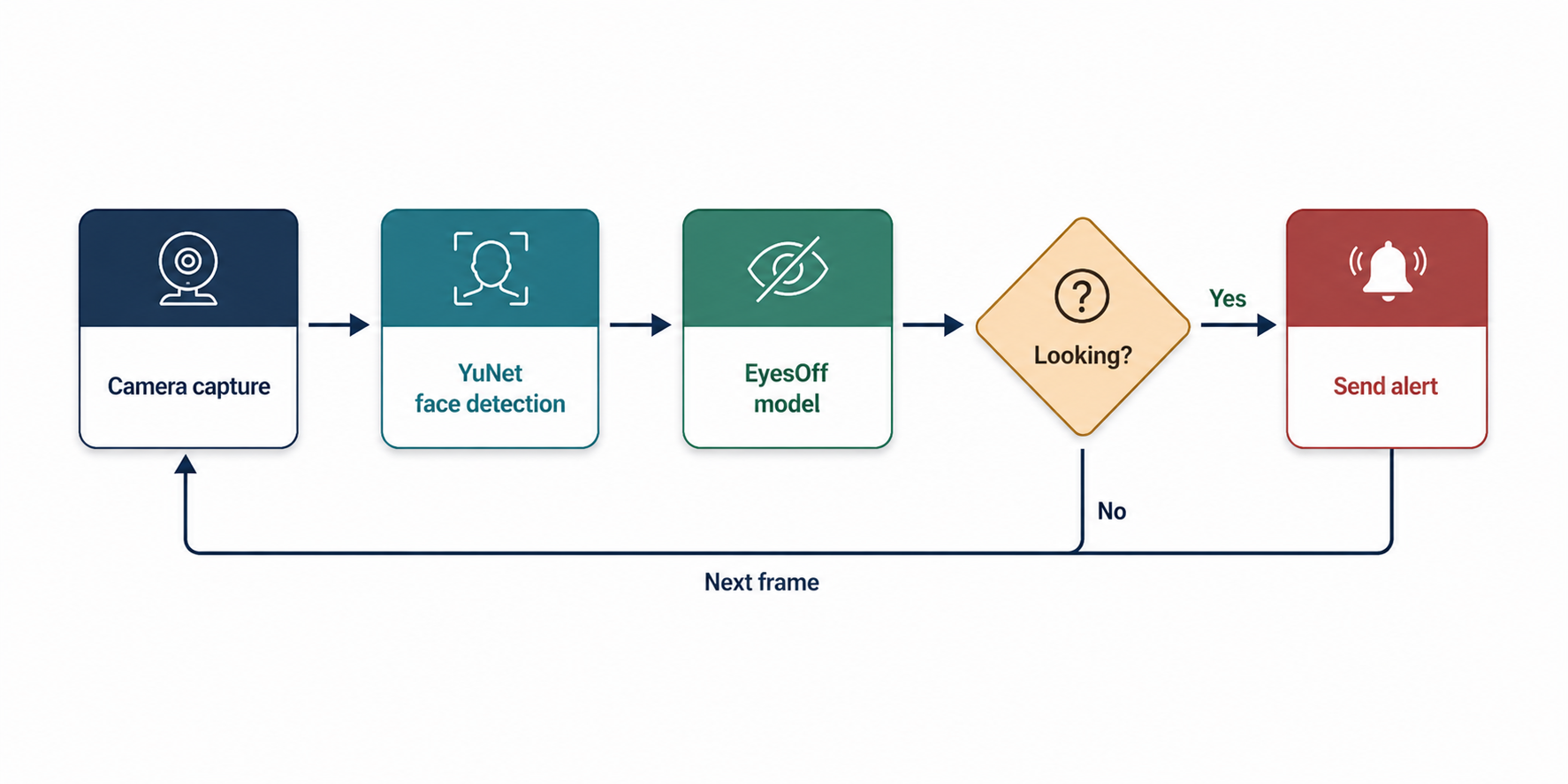
The beginning of ShoulderGuard is the webcam. When ShoulderGuard is active we take a live video feed from the webcam and supply it to the models to detect intrusions.
The first neural network we employ is YuNet, an open-source facial detection model. It is exceptionally small, sitting at roughly 75,000 parameters, ensuring this first step is as efficient as possible.
From the faces YuNet detects, we take a crop around the face and supply that to the EyesOff model. This model’s job is to classify whether a face is or is not looking at your screen. We custom trained this model and built the dataset from scratch; currently it contains around 80,000 images. The model itself is a custom architecture and, being inspired by YuNet, we tried to minimise the parameter count as much as possible — which is around 300,000 parameters.
After the EyesOff model classifies the face, EyesOff will either send an alert to the user (the delivery method depends upon your setup) if the face was classified as looking, and if not, monitoring continues in the background.
Optimising EyesOff to Reduce CPU and Battery Usage
Battery efficiency is a key goal of EyesOff. Given that many users will use the app on the go, we cannot allow EyesOff to be a big battery hog. We employed a number of optimisations across the pipeline and will explore them now.
Webcam Capture is the Most Power Hungry
Surprisingly, we found that the live camera capture feed uses the most power in the pipeline. This countered our hypothesis that the ML models would use the most battery.
Initially we opted for the naive method of webcam capture: we took the live video feed, split it up into its frames and then processed every frame in our pipeline. Now, the average webcam captures at 30 FPS, so in one minute of video we’d have processed 1,800 frames. For one, we didn’t need to process every frame, and secondly, this is very computationally intensive.
To reduce battery usage here we employed a few tactics, with the simplest being to not use every frame coming from the webcam feed. Instead of sending 30 frames per second through the pipeline, we end up processing ~5 frames per second. Also, where possible, we reduce the webcam capture rate from 30 FPS to 15 FPS (this isn’t possible with all webcams). So in the ideal scenario the live capture feed is running at 15 FPS and we are passing ~5 of those frames through the processing pipeline.
The reduction in the amount of frames we process actually feeds through the whole pipeline — the models themselves have few levers we can pull to make them more battery efficient.
Optimising the Models
The lever we pull for the ML models is to split up the processing. This is why YuNet handles detecting faces and the EyesOff model only classifies whether the face is looking or not. In theory we could have a single model do both tasks, but this would reduce the efficiency of the app.
This setup allows us to only run the lighter YuNet model to detect faces initially, meaning the heavier EyesOff model sits idle for most of the time. Furthermore, we employ an intelligent heuristic to detect the “main” user face (the person using the app) and we do not run the EyesOff model on that face.
A Quick View on the Result of the Optimisations
We ran a simple battery usage test before we optimised the app.1
The initial energy usage, measured in Watts, of the app was ~3.97 W; then, with the optimisations put in place, we got down to ~1.54 W. Tangibly, on a MacBook M2 Air, this translates into an hourly power consumption reduction from 7.5%/hr to 2.9%/hr (i.e. 61% less power used).
The Need to Stay On-device
First and foremost, privacy. We know no one wants their webcam data shipped away to a server, and frankly neither do we! As such, the entire ShoulderGuard pipeline — from webcam feed to detections — runs entirely on your hardware.
Another reason in favour of on-device processing is latency, or more aptly the lack of it. If we were to send the webcam feed to a server, by the time your laptop received a response the intrusion may have finished and you would’ve been completely unaware of it in the moment.
The Bits Which do Leave Your Device
We want to preface this by saying that EyesOff will run and keep you protected fully disconnected from the network. You’d only need to connect to a network once a month to verify your license (if you can’t connect to a network, feel free to reach out to us at [email protected]).
Now, there are a few features which make external network calls:
- The initial and ongoing license validation checks
- Partner code redemption
- Our anonymous feedback form
- Sparkle update checks
All of these are opt-in, except for the license validation checks.
1 Please take these numbers with a grain of salt as they come from a single laptop. We endeavour to test on many more devices soon. ↩